Set up My Wi-Fi Backup 2.0
Learn how to install your internet backup device and set up your Wi-Fi network.
Installation of Unbreakable Wi-Fi requires an active Frontier Internet connection. Don’t wait for an outage to set up Unbreakble Wi-Fi! If you’re currently experiencing a service outage, please wait until your service is restored before proceeding with steps below.
Note: Your Unbreakable Wi-Fi device does NOT replace any eero in your network. Instead, connect it to any Frontier-provided eero in your Wi-Fi network. Your network may be offline for a few minutes during the installation process.
Step 1: Download the eero app
Download the eero app, create an account, and follow the steps below to complete installation. If you already have the eero app, please make sure it’s updated to the latest version and make sure you log in.
Need some extra help? Download the eero app guide or chat with us.
Step 2: Gather your supplies
- Unbreakable Wi-Fi device – eero Signal
- Power adapter (45W USB-C) from your Unbreakable Wi-Fi self-install kit
- The eero app installed on your smartphone or tablet
- Frontier Fiber internet connection
Step 3: Continue on the eero app
Note: The install refers your device as eero signal. Don’t worry, you are in the right place! Please proceed. This is expected and you will see My Wi-Fi Backup 2.0 once you complete the installation.
- Open the eero app and tap the + icon in the top right to add a device.
- Select eero Signal from the list and tap Next.
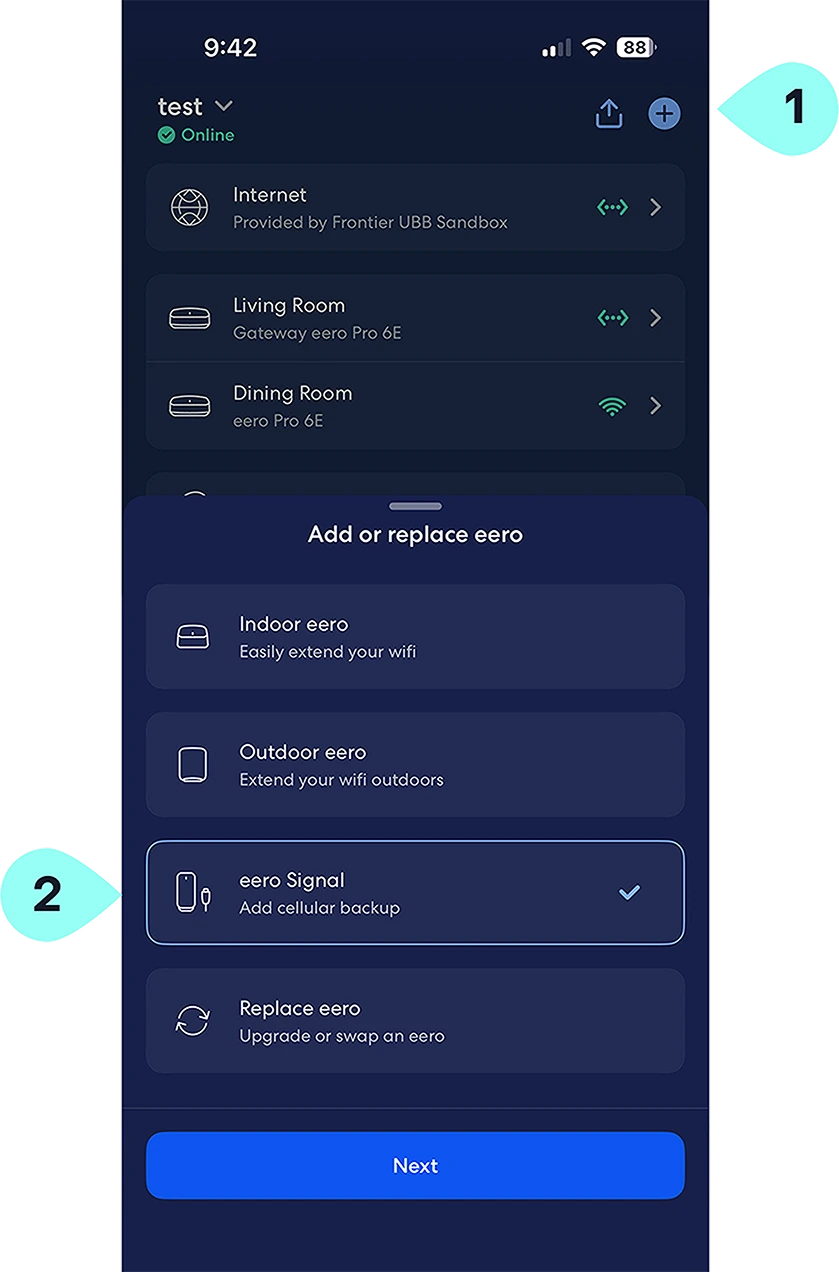
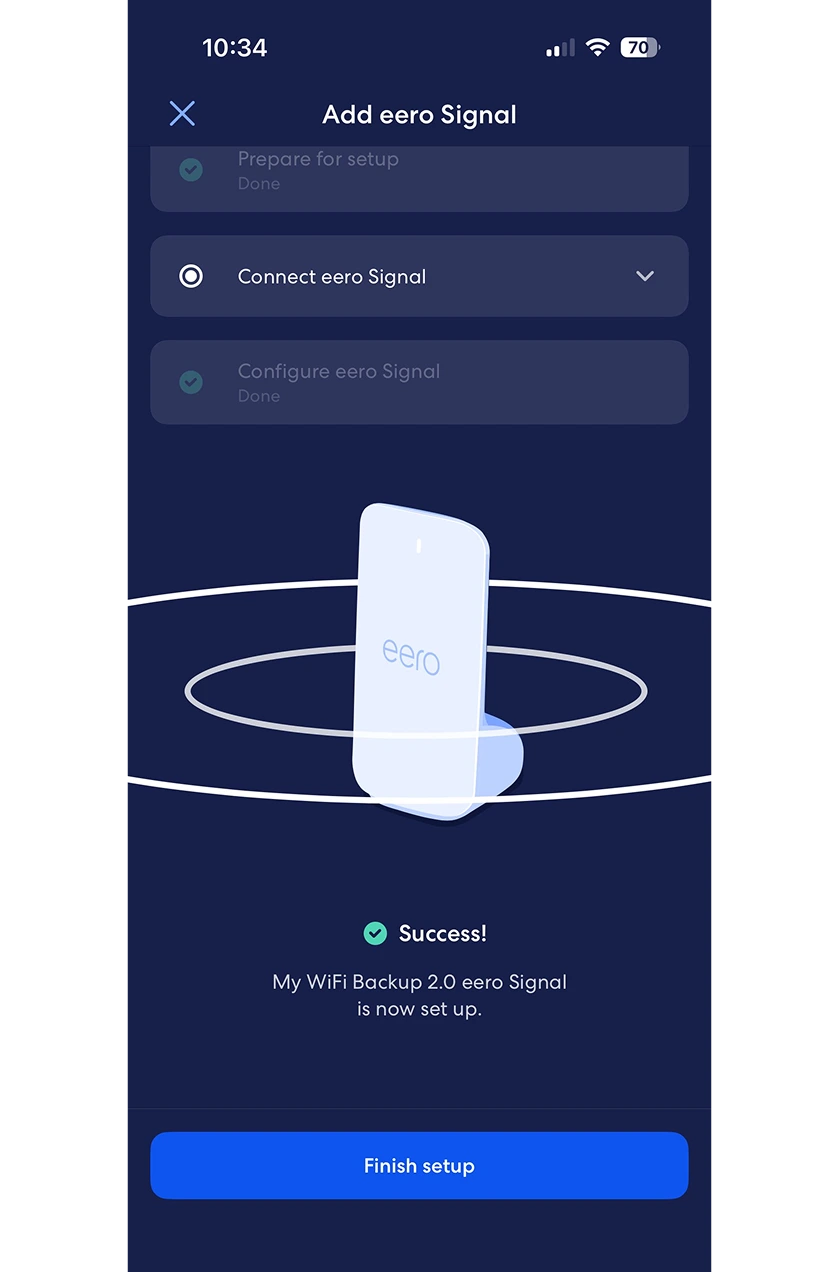
Follow the step by step flow to install the device. This typically takes few minutes.
- That’s it! Your backup device will automatically update its firmware, and then it will be ready to provide backup internet. You should see a solid white light on your backup device, and it’s connected eero.
Troubleshooting your My Wi-Fi Backup 2.0 device
-
Make sure you’re signed into the eero app.
- Tap the device that your My Wi-Fi Backup 2.0 is connected to. Then select the My Wi-Fi Backup 2.0 device to view its signal strength and connection details.
- If your signal strength is good, unplug both the My Wi-Fi Backup 2.0 device and the eero extender or router it’s connected to. Wait a few minutes, then plug them back in.
Need more support? Chat with us for technical help.
An internet outage occurs when your Frontier Internet service is interrupted, but your home still has power. During an internet outage, the Unbreakable™ Wi-Fi device uses a cellular connection to automatically provide devices connected to your Wi-Fi network with access to the internet.
To use Unbreakable™ Wi-Fi during a network outage, you’ll need:
- An active subscription to the Unbreakable™ Wi-Fi service
- Power to your home and your Unbreakable™ Wi-Fi device
- Available data
You can select which devices you want to keep connected to Unbreakable™ Wi-Fi in the eero app by turning Allow Internet Backup on or off for each selected device. Please note, your devices must be charged or have an external power source to connect to Backup Internet.
Unbreakable™ Wi-Fi uses cellular connectivity and is subject to availability and coverage in your area.
Extra data charges may apply. Cellular data is provided by a third-party carrier. Coverage, uptime, technology, and speeds will vary. May require backup power if the power goes out. Visit frontier.com/unbreakablewifi for more details.
Unbreakable™ Wi-Fi includes 130GB of monthly data. What you can do with 130GB of data:
- Watch approx. 60 hours (about 5 days) of streaming video (Netflix, Hulu, or Prime Video).
- Video chat on Zoom for approx. 80 hours (about 7 days).
If you’ve used all of your included data, your backup connection will turn off and your internet-connected devices won’t connect to your Wi-Fi through the backup device. Your data allowance will not refresh until the next billing cycle.
Unbreakable™ Wi-Fi should be able to connect to cellular coverage in almost all Frontier Fiber areas. The device includes a cellular signal strength indicator. If you live in an area with a very poor or no signal, you may not be able to use the device. You should test the device for signal quality when you receive it. If you have poor signal quality, you can chat for assistance in placing the device to receive a better signal. If the problem cannot be resolved, you may call us to cancel the service at no cost within 30 days of your order.